Frontend Debugging Interview Questions (With Answers)
Frontend debugging interview questions with answers: dead clicks, breakpoints, source maps, overflow, the CSS cascade, CORS, jank, memory leaks, Safari and races.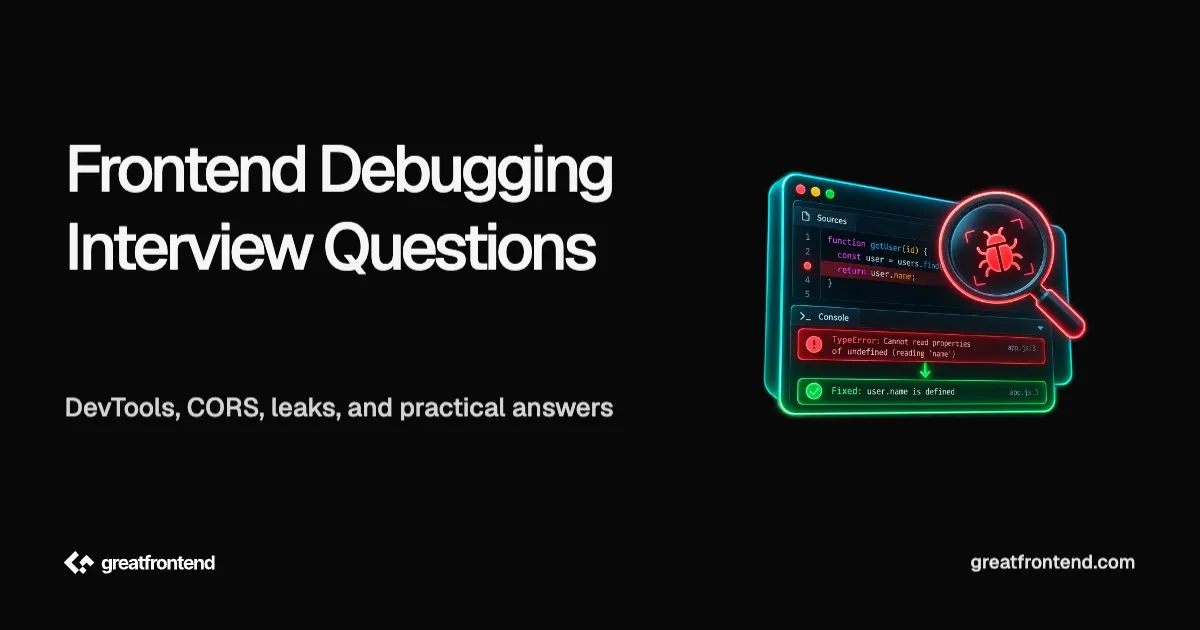
Frontend debugging interview questions are usually scenarios, not definitions. You are told that a button does nothing in production, that a fetch fails with a CORS error, or that memory keeps climbing during a long session, and the interviewer watches how you narrow it down. A strong answer names the first tool you would open, what you expect to see, and what each result rules out. This guide works through 14 such scenarios with the DevTools features, browser behavior and code involved, and links each answer to the Chrome, MDN, React or WebKit documentation it rests on.
What frontend debugging interview questions are testing
Debugging questions check method more than tool knowledge. An interviewer wants to see you reproduce the problem, form a hypothesis, choose the cheapest observation that splits the possibilities in half, and confirm the fix. Naming a DevTools panel is the easy part. Saying why you look there first, and what you would do if the first check came back clean, is what separates answers. Each scenario below follows that shape.
Question 1: A button click does nothing in production. How do you debug it?
How to approach it
Split the possibilities before guessing. Either the click never reaches your handler, or the handler runs and fails, or it runs and succeeds but nothing visible changes.
- Check the Console for errors. An exception thrown during setup can mean the listener was never attached.
- Check whether the click reaches the button at all. A transparent overlay, such as an unclosed modal backdrop or a wide sibling with a higher
z-index, intercepts clicks. In the Console,document.elementFromPoint(x, y)returns the topmost element at a point, per MDN. If it is not your button, you have found the cause. Also check forpointer-events: noneon the button or an ancestor. MDN notes such elements are not targets of pointer events but can still receive focus with Tab, so "it works with the keyboard but not the mouse" points at either an overlay or this property. - Check whether a listener is attached. Select the button in the Elements panel and inspect the Event listeners tab to find registered handlers and their source. In the Console,
getEventListeners($0)shows listeners attached directly to the selected element. However, frameworks such as React use event delegation, so a click handler may be registered on an ancestor rather than directly on the button. Check ancestor listeners or use an event listener breakpoint to confirm whether the handler runs. - Check whether the handler runs. In Sources, expand Event Listener Breakpoints and tick the
clickevent, per the breakpoints guide. The next click pauses inside whatever handler runs, including framework dispatch code.
getEventListeners() and monitorEvents() are DevTools Console utilities, not web APIs. The Console Utilities reference states they only work when called from the DevTools Console, not from your scripts.
Question 2: When do you use breakpoints instead of console.log, and which breakpoint types do you use?
How to approach it
console.log is fine when you already know which value you need. Breakpoints win when you do not, because pausing shows every variable in scope and the call stack, and you can step forward. The stronger answer names the breakpoint types and when each one helps. Chrome's breakpoints guide lists them, and these are the main ones:
| Type | Use it when |
|---|---|
| Line-of-code | You know roughly where the problem is |
| Conditional line-of-code | A loop runs 500 times and only one item is wrong |
| Logpoint | You want a log without editing code or pausing |
| DOM change | Something removes or changes an element and you do not know what |
| XHR/fetch | You want to pause when a request URL contains a string |
| Event listener | You want to pause in whatever handles an event |
| Exception | An error is thrown and you want to stop at the throw |
| Function | You want to pause whenever a function is called |
Two of these deserve a sentence in an interview. A logpoint, per the same guide, logs "without pausing the execution and without cluttering up your code with console.log() calls," which is useful on a page you cannot redeploy. A DOM change breakpoint, set with right-click > Break on > Subtree modifications, Attribute modifications or Node removal in the Elements panel, answers the question "what code removed this element?" without reading the codebase. The debugger; statement is the code-side equivalent of a line-of-code breakpoint.
Question 3: Production errors show minified stack traces. How do source maps work and how do you use them safely?
How to approach it
A source map maps positions in the minified output back to the original files. The bundle links to it either with a trailing comment, //# sourceMappingURL=app.js.map, or with a SourceMap HTTP response header. Per the ECMA-426 source map specification and MDN, the header takes precedence when both are present, and the old X-SourceMap header is deprecated.
The safety question is whether to publish the maps, since a public map exposes your original source. Build tools support generating maps without linking them:
// vite.config.jsexport default {build: { sourcemap: 'hidden' },};
Vite's build options say 'hidden' "works like true except that the corresponding sourcemap comments in the bundled files are suppressed." webpack's equivalent is devtool: 'hidden-source-map', and its devtool documentation says not to deploy the map to the web server but only to use it for error report tooling. You then upload the maps to your error monitoring service at build time. Sentry's documentation, as one example, describes uploading them as part of the build so stack traces in error reports are readable.
When you need the original code in DevTools on a production page without public maps, Chrome lets you right-click the deployed file in Sources and choose Add source map, per its Developer Resources documentation.
One more detail is worth knowing. Error.stack is not standardized. MDN marks it non-standard and warns that you cannot rely on the precise content of the stack string, so do not parse it by hand across browsers. Where to configure source maps in a build is covered in GreatFrontEnd's frontend build tools interview questions.
Question 4: A horizontal scrollbar appears on mobile. How do you find the element causing it?
How to approach it
Something is wider than the viewport. Find it with a measurement rather than by toggling styles at random. This Console snippet lists every element whose right edge passes the viewport width:
const vw = document.documentElement.clientWidth;[...document.querySelectorAll('body *')].filter((el) => el.getBoundingClientRect().right > vw).forEach((el) => console.log(el, Math.round(el.getBoundingClientRect().right)));
clientWidth on the root element is the viewport width excluding any scrollbar, per MDN. The snippet identifies elements whose right edges extend beyond that width, giving you candidates to inspect. However, it can miss overflow extending past the left edge and may flag elements that do not actually create page-level scrolling. Inspect the reported elements and their ancestors in DevTools to confirm which one is causing the overflow.
The common causes are worth naming. A fixed width larger than a phone screen. A long unbroken string such as a URL or a token, fixed with overflow-wrap: anywhere, which MDN says lets an otherwise unbreakable string break at any point. And width: 100vw. The CSS Values specification draft says viewport units are sized assuming scrollbars do not exist, so on a desktop browser with classic scrollbars 100vw is wider than the visible area. Browsers that use overlay scrollbars, which take no layout space, may not show that last problem at all, so check a desktop browser with classic scrollbars too.
In the Elements panel, scroll containers carry a scroll badge, per the badges documentation. That helps with nested scroll areas, but it marks containers, not the child that overflows the page, which is why the measurement comes first. Test on a real phone as well, since Chrome describes device mode as "a first-order approximation."
Question 5: Your CSS rule is not applying. How do you find out why?
How to approach it
Select the element and read the Styles pane before changing anything. It answers most versions of this question directly. Chrome's CSS issues guide describes what you will see:
- Struck through with a warning icon: an invalid property name or value. A typo such as
colrlands here. - Struck through without a warning: overridden by another declaration according to the cascade. Find the winner higher in the pane.
- Pale with an info icon: valid but inactive because of another property, for example
justify-contenton an element that is not a flex or grid container. - Selector in pale text: the rule does not match this element at all.
The Computed tab shows only what actually applies, with the source of each value. Hovering a selector shows its specificity, per the CSS features reference. For hover or focus styles, use the :hov toggle to force the state instead of trying to hover while inspecting.
Then the cascade rules that trip people up. Specificity only decides between declarations in the same cascade layer and origin, per MDN's specificity guide. With cascade layers, MDN's @layer reference says normal declarations inside layers have lower priority than those outside any layer, whatever their specificity:
@layer components {.card .title { color: navy; } /* loses */}h2 { color: black; } /* wins: unlayered */
A design system shipped inside a layer can therefore lose to a plain element selector in your app CSS, and raising specificity will not help. GreatFrontEnd's CSS interview questions cover the cascade in more depth.
Question 6: A fetch call fails with a CORS error in the console. How do you work out what is actually wrong?
How to approach it
Start by knowing what your code cannot see. MDN's CORS errors page says that for security reasons, specifics about what went wrong are not available to JavaScript: "All the code knows is that an error occurred." The details are in the Console and the Network panel, and nowhere else.
Open the Network panel and find the request. Chrome's Network reference says the Status column can show "CORS error", and hovering it shows a tooltip. Then check three things:
- Was there a preflight? A request with
Content-Type: application/jsonor anAuthorizationheader is not one of the request shapes that skip the preflight, so the browser first sends anOPTIONSrequest, per MDN's CORS guide. If theOPTIONSrequest fails, the real request is never sent. - Did the response include
Access-Control-Allow-Origin? A frequent real cause is the server returning a 401 or 500 from a code path that does not add CORS headers. The browser reports a CORS error, but the underlying problem is the error status. This is reasoning from how the check works rather than a documented rule, so confirm it by looking at the status and headers of the failed response. - Are credentials involved? With cookies or
credentials: 'include', the server must not reply withAccess-Control-Allow-Origin: *. MDN says the browser blocks access to the response in that case, and a server that echoes the request origin should also sendVary: Origin.
Right-click the request and use Copy as cURL to replay it outside the browser. curl does not enforce CORS, so a successful response only confirms that the server can handle the request outside the browser's CORS checks. Inspect the response headers and, if applicable, reproduce the preflight OPTIONS request to identify the failing CORS requirement. Also check for network, authentication or redirect failures before deciding whether the fix belongs in the server configuration or the client request. GreatFrontEnd's REST API interview questions for frontend developers cover CORS from the API side.
Question 7: Scrolling feels janky. How do you find the cause in the Performance panel?
How to approach it
Record it. Open the Performance panel, apply CPU throttling, start recording, scroll the slow area, and stop. Throttling matters because a fast laptop hides problems, though Chrome's Performance reference notes DevTools cannot truly simulate mobile CPUs.
In the recording, look for long tasks on the main thread. web.dev defines a long task as one longer than 50 milliseconds, and the Performance panel marks them with a red triangle and shades the part over 50 milliseconds. Click one and read the bottom-up breakdown to see which function took the time.
Two causes come up often in scroll handlers:
- Forced reflow. Reading a layout property such as
offsetHeightright after changing styles forces the browser to calculate layout synchronously. Doing it repeatedly in a loop is layout thrashing. The Performance panel has a Forced reflow insight, which Chrome's documentation describes in exactly those terms. The fix is to batch reads before writes. - Non-passive touch or wheel listeners. A listener that might call
preventDefault()can make the browser wait before scrolling. MDN sayspassivedefaults tofalse, except that it defaults totrueforwheel,mousewheel,touchstartandtouchmoveon the window, document, root element and body. A listener on a nested scroll container still needs{ passive: true }set explicitly. The same page notes thatpassiveis not a concern for thescrollevent itself.
The Rendering tab adds visual checks: Paint flashing highlights repainted areas and Frame rendering stats shows dropped frames, per Chrome's rendering performance page. How to fix what you find is covered in GreatFrontEnd's senior web performance interview questions.
Question 8: The tab's memory keeps growing during a long session. How do you find the leak?
How to approach it
Confirm it is a leak, then find what holds the memory. The method that works is comparing heap snapshots across a repeated action:
- Open the Memory panel and take a Heap snapshot at a stable starting point. Chrome's heap snapshot guide notes that taking a snapshot always starts with garbage collection, so what remains is genuinely retained.
- Perform the suspect action several times, for example opening and closing a modal ten times, then return to the starting state.
- Take a second snapshot and switch to the Comparison view, or filter by objects allocated between the two snapshots.
- Look for counts that grew by roughly ten, then read the Retainers section to see what still references them.
For DOM leaks, type Detached in the class filter, per Chrome's memory problems guide. A detached node is removed from the page but still referenced from JavaScript, so it cannot be collected. The Memory panel also offers a Detached elements profile type for this.
The usual retainers in frontend code are event listeners added to window or document and never removed, timers that are never cleared, subscriptions without cleanup, and caches with no size limit. getEventListeners(window) in the Console is a quick check for the first one.
Avoid using performance.memory as your measurement. MDN marks it deprecated and non-standard, available only in Chromium-based browsers, and says it can over- or underestimate. GreatFrontEnd's JavaScript interview questions for 5 years experience walk through a React leak scenario from the code side.
Question 9: A bug only happens in Safari on iPhone. How do you debug it?
How to approach it
Debug it in Safari, not in Chrome's device mode. Device mode changes the viewport and user agent, but Chrome's device mode documentation says you "don't actually run your code on a mobile device." It is still Chrome's engine. Apple's App Store review guidelines require apps that browse the web to use WebKit, with entitlements for alternative engines limited to the EU and Japan, so a bug in iPhone Safari is often a bug in other iPhone browsers too.
Apple documents the setup for inspecting iOS:
- On the Mac, enable Show features for web developers in Safari's Advanced settings, per Apple's guide to enabling developer features.
- On the iPhone, open Settings > Apps > Safari > Advanced and turn on Web Inspector. Older iOS versions put Safari directly under Settings.
- Connect by cable. The device appears in Safari's Develop menu, and you can inspect the page with Web Inspector. After the first cable connection, it can also connect over the network.
The Simulator in Xcode has Web Inspector always enabled, which is useful when no device is at hand, though it does not reproduce every hardware or performance behavior. For Android, Chrome's remote debugging guide uses USB debugging and chrome://inspect#devices.
Once attached, narrow it the usual way: Console errors first, then whether the failing API or CSS feature is supported in that Safari version. The browser compatibility table at the bottom of each MDN reference page is the quickest check.
Question 10: Search results sometimes show data for an older query. How do you debug the race condition?
How to approach it
This is responses arriving out of order. The user types "re", then "react", and the slower "re" response lands last and overwrites the correct results. React's documentation on effects states it directly: there is "no guarantee about which order the responses will arrive in."
First, reproduce it on purpose, because a race that depends on network timing rarely shows up on a fast connection. Chrome's Request conditions drawer can throttle requests matching a URL pattern, per its documentation, so you can slow down one request and make the out-of-order arrival happen every time.
Then fix it. In React, the documented pattern is a cleanup that ignores stale responses:
useEffect(() => {let ignore = false;fetchResults(query).then((data) => {if (!ignore) setResults(data);});return () => {ignore = true;};}, [query]);
AbortController goes further and cancels the outdated request. MDN says it can abort fetch requests and the consumption of response bodies, and it has been widely available since March 2019. Pass controller.signal to fetch and call controller.abort() in the cleanup. An aborted fetch rejects, so handle that rejection rather than reporting it as an error. React's Strict Mode helps here too: in development it remounts components, which the React documentation says is meant to expose bugs like race conditions early.
Question 11: The page breaks for some users and you suspect a browser extension or third-party script. How do you isolate it?
How to approach it
Remove variables one at a time.
- Rule out extensions. Ask the user to try an Incognito window. Chrome's extension help page says extensions run in Incognito only if the user turns on Allow in incognito for each one. If the bug disappears in Incognito, an extension is the likely cause.
- Rule out third-party scripts. In the Network panel, right-click an analytics, chat or A/B testing script and choose Block request. Chrome's Request conditions documentation describes blocking by URL pattern and notes that blocked requests show as
(blocked:devtools). Reload and see whether the bug persists. The patterns are saved, but blocking turns off when DevTools closes. - Hide noise while stepping. In DevTools settings, the Ignore List can ignore content scripts from extensions, so the debugger skips their frames, per the Ignore List documentation.
Extensions that modify the page can also break server-rendered React apps. The React 19 release notes say a hydration mismatch can happen if the client has a browser extension installed that changes the HTML before React loads.
For third-party scripts in production, a Content-Security-Policy-Report-Only header lets you detect violations of a proposed Content Security Policy without blocking resources. It does not report every resource the page loads, only policy violations. Configure a reporting endpoint using the appropriate reporting directives and headers. GreatFrontEnd's frontend web security interview questions cover CSP in more detail.
Question 12: An error is swallowed somewhere and the UI just stops updating. How do you find where it was thrown?
How to approach it
Something threw, and a catch block or an unhandled promise hid it. Make DevTools stop at the throw.
In the Sources panel's Breakpoints pane, tick Pause on uncaught exceptions and, if nothing pauses, Pause on caught exceptions. Chrome's breakpoints guide says the debugger tries to pause in both synchronous and asynchronous calls and looks for rejection handlers across promises. Pausing on caught exceptions is noisy, since libraries catch errors routinely. Keep ignore listing enabled: the Ignore List settings page says the debugger ignores scripts from /node_modules/ by default, so pauses land in your own code.
Then check the usual hiding places:
- An empty
catch, or one that only logs at a level the console filter hides. - A rejected promise with no handler. The browser fires an
unhandledrejectionevent on the window, per MDN. A global listener for it is a cheap way to log these in production. - An error that a React error boundary did not catch. The React Component reference says error boundaries do not catch errors in event handlers, in asynchronous code such as
setTimeoutcallbacks, during server rendering, or in the boundary itself. An exception thrown in anonClickhandler bypasses the boundary completely.
React 19 also accepts onUncaughtError and onCaughtError options on createRoot, which the createRoot reference documents as hooks for reporting errors, so they can be sent to your monitoring service.
Question 13: A bug reported by users cannot be reproduced locally. What do you do?
How to approach it
Collect the conditions the user had, because one of them differs from yours. Ask for, or capture automatically, the browser and version, operating system, screen size, account state and the exact data involved. "It fails for this account only" often points to data rather than code.
Error monitoring does the capturing for you. A typical setup records the error with a stack trace, de-minified with the source maps from Question 3, plus breadcrumbs. Sentry's documentation, as one example, describes breadcrumbs as a trail of events before an issue, recorded automatically for clicks, fetch requests, console calls and navigation. Session replay goes further and records what the user saw, but it has privacy implications. Sentry's replay privacy documentation says its SDK masks all text and blocks media by default, and tells you to verify the masking configuration before production. Whatever tool you use, check what it captures before it ships.
Then narrow the gap between the user's environment and yours:
- Match the browser exactly, including Safari (Question 9).
- Use the user's data, or a copy of it, since edge-case records cause many "cannot reproduce" bugs.
- Rule out extensions and third-party scripts (Question 11).
- Check whether a feature flag or experiment put the user on a code path you are not on.
If the bug arrived with a release, finding the commit that introduced it with a binary search over history can be faster than reading code.
Question 14: How do you test a fix against the production site before deploying it?
How to approach it
Use Local Overrides. Chrome's overrides documentation describes overriding web content and HTTP response headers locally. In the Network panel, right-click the request and choose Override content, pick a local folder and allow access, then edit the file. On the next reload, DevTools serves your version instead of the network response. It works for most file types, including XHR and fetch responses, so you can also change an API response to test how the UI handles it.
Override headers works the same way for response headers. Chrome's own example adds Access-Control-Allow-Origin to see whether that header would fix a CORS error, which makes it a fast way to confirm the diagnosis from Question 6 before asking the backend team for a change.
Know the limits, because they decide whether this approach works for your bug:
- Overrides do not persist edits made in the Elements panel's DOM tree.
- The cache is disabled while Local Overrides are enabled, so caching bugs will not reproduce.
- The documentation says "you can't override source-mapped files." On a site that serves source maps, DevTools redirects you to the original sources instead, so overriding the deployed bundle may not behave the way you expect.
Workspaces are the related feature for a local development server: they save DevTools edits back to your source files, per the Workspaces documentation. That is for development, not for testing against production.
Common mistakes in frontend debugging interview questions
- Guessing before reproducing. Most answers improve by starting with "first I would make it fail reliably."
- Treating a CORS error as the root cause without checking the response status in the Network panel.
- Testing a Safari bug in Chrome's device mode, which runs Chrome's engine.
- Raising specificity to fix a cascade layer problem, when unlayered styles win regardless.
- Measuring memory with
performance.memoryinstead of comparing heap snapshots. - Expecting an error boundary to catch an
onClickerror or an async failure. - Publishing source maps by default instead of generating hidden maps for error monitoring.
Frequently asked questions
Do I need to know every DevTools panel? No. Know the Console, Elements, Sources, Network, Performance and Memory panels well enough to say what each one answers. The Rendering tab and Local Overrides are a strong bonus.
Are these tools Chrome-only? The panel names are Chrome's. Firefox and Safari have comparable tools with different names, and some Console utilities such as getEventListeners() are documented for Chrome. Say which browser you mean.
Is console.log debugging bad? No. It is the right tool when you know which value you need. Breakpoints and logpoints are better when you do not, or when you cannot edit the code.
How do I explain my process if I have not seen the bug before? Say the hypotheses out loud, pick the check that rules out the most of them, and say what you would do with each result. That is the skill being assessed.
How to prepare
Practise on real bugs rather than reading about panels. Take a project you know and deliberately introduce one bug per category: an overlay that blocks a button, a 100vw element, a rule that loses to an unlayered style, a listener that is never removed, a fetch race with a throttled request, and a promise rejection inside a catch. Then find each one using only DevTools, and write down the first panel you opened and why. For the browser internals behind several of these answers, GreatFrontEnd's senior browser fundamentals interview questions are the natural next read.
Conclusion
Frontend debugging interview questions reward a method more than a list of tools. Reproduce the problem, split the possibilities, and pick the observation that rules out the most: elementFromPoint and event listener breakpoints for a dead click, the Styles pane and cascade layers for a missing rule, the Network panel for a CORS error, a throttled recording for jank, compared heap snapshots for a leak, real Safari for an iPhone bug, request throttling for a race, exception breakpoints for a swallowed error, and Local Overrides to prove a fix before shipping it. If you can explain the first check, what it would show and what you would do next for each of the 14 scenarios here, you are answering at the level these questions are looking for.
Related articles
 Senior web performance developer interview questions on INP diagnosis, lab versus field data, performance budgets, hydration cost, and knowing when not to optimise.
 Frontend build tools interview questions on Vite, webpack, bundling, tree shaking, content hashing, source maps and chunking, with real configs and answers.
 Explore advanced JavaScript interview questions and answers designed for engineers with 5+ years of experience, curated by big tech senior engineers.