Autocomplete
Asked at these companies
Autocomplete combines front end concepts and techniques that also apply to other system design questions, including input handling, asynchronous search, caching, and keyboard navigation.
Question
Design an autocomplete UI component that allows users to enter a search term into a text box, a list of search results appears in a popup, and the user can select a result.
Some real-life examples where you might have seen this component in action:
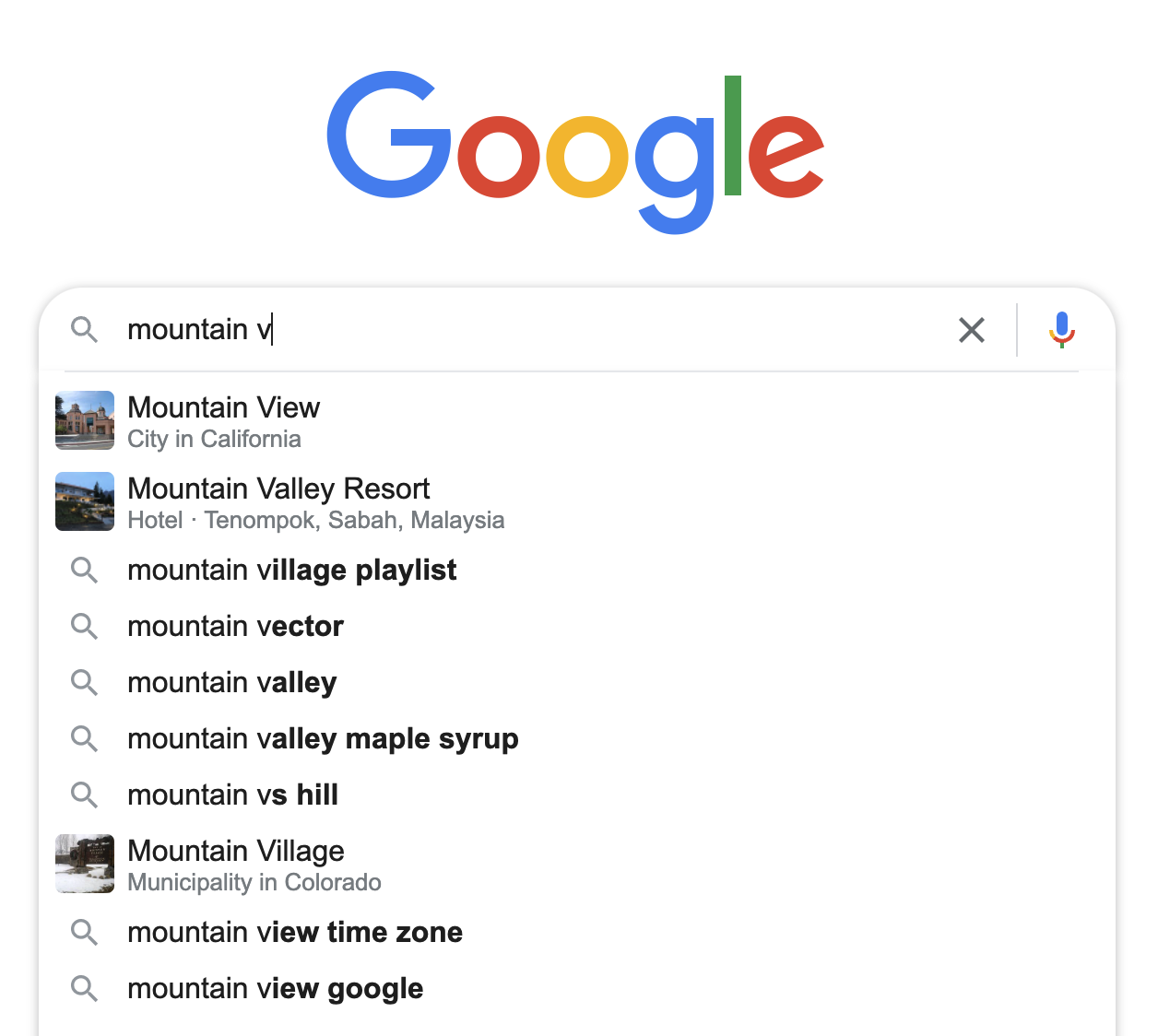
- Google's search bar on google.com where you see a list of primarily text-based suggestions.
- Facebook's search input where you see a list of rich results. The results can be friends, celebrities, groups, pages, etc.
A back end API is provided that will return a list of results based on the search query.
Requirements
- The component should be generic enough to be usable by different websites.
- The input field UI and search results UI should be customizable.
Requirements exploration
These are questions you should be asking your interviewer to dive deeper into the problem and refine the requirements.
What kind of results should be supported?
Text, image, and media (image accompanied with text) are the most common types of results, but we cannot anticipate all the different kinds of results that users of the component will want to render.
What devices will this component be used on?
All possible devices: laptops, tablets, mobile, etc.
Do we need to support fuzzy search?
Not for the initial version. We can explore this if we have time.
Architecture
- Input field UI
- Handles user input and passes the user input to the controller.
- Results UI (Popup)
- Receives results from the controller and presents them to the user.
- Handles user selection and informs the controller which input was selected.
- Cache
- Stores the results for previous queries so that the controller can check the cache before sending a request to the server.
- Controller
- The "brain" of the whole component, similar to the Controller in the Model View Controller (MVC) pattern. All the components in the system interact with this component.
- Passes user input and results between components.
- Fetches results from the server if the cache is empty for a particular query.
Conceptually, the controller sits at the center: it receives input from the field, consults the cache, falls back to the server on a miss, and pushes results into the popup while also writing responses back into the cache for future keystrokes.
Data model
- Controller
- Props/options exposed via the component API
- Current search string
- Request status and latest generation by normalized query key
- Cache
- Initial results
- Cached results
- Refer to the section below for cache data model design
These core fields support the basic functionality; caching and other features require additional fields.
At a glance, the controller owns transient UI state (current input, active result ID, open/closed flag) while the cache owns persistent query history, keyed by the normalized query string and referencing result entities.
requestStatus can distinguish idle, loading, success, error, and offline; an empty state is a successful current-query response with zero results.
Interface definition (API)
Since this is a front end system design question, we will focus on the API of the component and only briefly touch on the search API that the server should provide.
Client
Since we want to make a component that is flexible and easy for other developers to use, we cannot make too many assumptions about how the component will be used and have to supply a fairly large number of options.
Basic API
These are the core APIs that affect the functionality of the component.
- Number of results: The number of results to show in the list of results.
- Request adapter: A function that receives the query, result limit, optional continuation cursor, and
AbortSignal, then returns typed results with stable IDs. This keeps URL construction, authentication, and response parsing outside the component. - Event listeners:
'input','focus','blur','change', and'select'are some of the common events that developers might want to respond to (possibly to log user interactions), so adding hooks for these events would be helpful. - Customized rendering: There are a few ways to allow developers to customize the rendering of the various parts of their UI for their use cases:
- Theming options object: This approach is the easiest to use but the least flexible/customizable. The component can accept an object of key/value pairs (e.g.
{ textSize: '12px', textColor: 'red' }) and use it when rendering. - Classnames: Allow developers to specify their own CSS class names that the component will add to the various UI sub-components.
- Render function/callback: This is an inversion of control technique commonly used in React where the rendering is completely left to the developer. The component invokes a developer-provided function with some data, and the developer can customize the logic/code to render the UI based on that data. This is the most flexible approach but requires the most effort from the developer.
- Theming options object: This approach is the easiest to use but the least flexible/customizable. The component can accept an object of key/value pairs (e.g.
Advanced API
These APIs affect the user experience and performance of the component and should be covered if there's enough time.
- Minimum query length: There will likely be too many irrelevant results if the user query is too short, as it is not specific enough. We might only want to trigger the search when a minimum number of characters have been typed in, possibly 3 or more.
- Debounce duration: Triggering a back end search API for every keystroke can be quite wasteful, especially when the queries for the first few characters are likely to not be meaningful. Debouncing is a technique that limits the number of times a function gets called. We could debounce the API calls so that the server does not get hit too often. With a debounce duration of 300ms, the back end search API will only be called after there has been no user input for 300ms.
- API timeout duration: How long we should wait for a response before determining that the search has timed out so we can display an error.
- Cache-related: More details on these options will be covered in the cache section below.
- Initial results
- Results source: network only/network and cache/cache only
- Cache duration
Server API
The request adapter should expose a small, consistent contract to the component:
The stable id supports rendering and accessibility, while text is the visible label. When value is omitted, the component commits text on selection. Consumers can extend this minimum shape with image or other renderer-specific fields. The adapter translates provider-specific requests, responses, and errors into this contract. A cursor is preferable to a page number when the ranked result set can change between requests.
Optimizations and deep dive
Autocomplete also needs request ordering, bounded caching, efficient rendering, and keyboard interaction:
- Network: This section explains how to handle frequent requests, out-of-order responses, retries, cancellation, and degraded connectivity.
- Cache: This section covers client-side caching policies, cache keys, invalidation, and how cached suggestions reduce repeated query work.
- Performance: This section discusses client-side rendering and input responsiveness techniques for keeping suggestions fast as users type.
- User experience: This section covers loading states, empty states, keyboard flow, and interaction details that make autocomplete feel predictable.
- Accessibility: This section explains the ARIA combobox pattern, keyboard navigation, focus handling, and screen-reader expectations for suggestions.
Network
Autocomplete fires a request on nearly every keystroke, so the network layer has to tolerate in-flight responses arriving out of order, transient failures, and dropped connectivity.
Handling concurrent requests/race conditions
What happens if the user makes changes to the query while there's a pending network request? If there are multiple pending network requests, we will need to be mindful not to display results for a previous search query. We cannot rely on the return order of network responses from the server because an earlier request might complete later than a request fired after it.
Responses for older keystrokes can easily overtake newer ones on a flaky network. Give each request a monotonically increasing generation, accept a cache write only if it is the newest generation for that query key, and render it only if the key still matches the current input.
The sequence below shows how a later keystroke's response can arrive before an earlier one, and how keying results by the issuing query lets the view safely ignore the stale payload without canceling in-flight work.
To know which request's response we should display, we could:
- Attach a timestamp to each request to determine the latest request and only display the results of the latest request (not the latest response!). Discard the responses of irrelevant queries.
- Save the results in an object/map, keyed by the search query string, and only present the results corresponding to the input value in the search input.
The query key prevents results for fa from rendering for fac, but it does not distinguish two requests for the same query. Add a monotonically increasing generation so only the newest response for a key may update its cache entry.
Aborting a superseded request with AbortController can save client and network work, but it is an optimization rather than the correctness mechanism because cancellation may arrive too late. Keep the identity checks whether or not requests are canceled.
Per-query generations protect the cache from older same-query responses, while the current input decides which cached query is visible. This still lets a response for a historical prefix warm its own cache entry.
Saving the responses for historical keystrokes is useful for cases where users accidentally type an extra character. "f" -> "fo" -> "foo" -> meant to type "t" but mistyped an extra "r" due to fat fingers -> "foot" -> "footr" -> deletes extra "r" -> "foot" (results for "foot" can be displayed immediately since they are already in the cache). If there's debounce, then the request for "foot" might not have fired immediately and there's no response for "foot" to cache, so this mainly benefits autocomplete components without debounce or people who type slower than the debounce duration.
Failed requests and retries
Server requests can sometimes fail, possibly due to the user's flaky internet connection. The component can automatically retry firing the query. In case the server is indeed offline and we are concerned about overloading it, we could use an exponential backoff strategy.
Offline usage
If we detect that the device has entirely lost its network connection, there's not a whole lot that we can do since our component relies on the server for data. But we could do the following to improve the UX:
- Read purely from the cache. Obviously this is not very useful if the cache is empty.
- Not fire any requests, so as not to waste CPU cycles.
- Indicate somewhere in the component that there's no network connection.
Cache
What is the cache for? Caches are typically used to improve the performance of queries and reduce processing costs by saving the results of previous queries in memory. If/when the user searches for the same term again, instead of hitting the server for the results, we can retrieve the results from memory and instantly show them, effectively removing the need for any network request and latency.
To provide the best experience, Google and Facebook search inputs cache user queries.
Prefix lookup with a trie
A trie indexes a collection of strings by sharing their prefixes. To find suggestions for fac, follow the edges for f, a, and c, then collect words below that node, such as face and facebook. Reaching the prefix node takes time proportional to the prefix length; collecting and ranking suggestions requires additional work.
A client-side trie can be useful when the browser already has a bounded, relatively stable collection, such as a list of country names. It avoids scanning the whole collection for each prefix, at the cost of building and storing the index. For a small collection, filtering an array may be sufficient. With a large or frequently changing collection, the suggestions server can own the search index and return a limited, ranked result set.
The query cache here stores responses already returned by that server. A cached response for fa may contain only the top results for that query, so filtering it for fac can miss valid suggestions. A trie built from those cached results would have the same incomplete coverage. Keep server-backed queries keyed by the full query; use a local trie when the available collection is sufficient to answer the search.
Cache structure
The component cache can be designed in several ways, each with tradeoffs worth explaining in a front end system design interview.
The examples below use the adapter's text and optional type fields. The first two omit repeated IDs to keep the structural comparison short; cached results in the component still follow the stable-ID contract above.
1. Hash map with search query as key and results as value. This is the most obvious structure for a cache, mapping the string query to the results. Retrieving the results is super simple and can be done in O(1) time just by looking up whether the cache contains the search term as a key.
However, note that there are lots of duplicate results, especially if we don't do any debouncing as the user is typing and we fire one request per keystroke. This results in the page consuming lots of memory for the cache.
2. List of results. Alternatively, we could save the results as a flat list and do our own filtering on the front end. There will not be much (if any) duplication of results.
However, this is not ideal in practice because we have to do filtering on the client side. This is bad for performance and might end up blocking the UI thread, and it is especially evident on large data sets and slow devices. The ranking order of the results might also be lost, which is not ideal.
3. Normalized map of results. We take inspiration from normalizr and structure the cache like a database, combining the best traits of the earlier approaches: fast lookup and non-duplicated data. Each result entry is one row in the "database" and is identified by a unique ID. The cache simply refers to each item's ID.
There will be pre-processing that needs to be done before showing the results to the user, to map a list's result IDs to the actual result items, but the processing cost is negligible if there are only a few items to be shown.
The relationship between the query-keyed index and the canonical result store mirrors a normalized database, where each query points to a list of IDs and each ID resolves to a single shared entity.
Which structure to use?
Which to use depends on the type of application this component is being used in.
- Short-lived websites: If the component is being used on a page that is short-lived (e.g. Google search), option 1 would be the best. Even though there is duplicated data, the user is unlikely to use search so often that memory usage becomes an issue. The cache is cleared/reset when the user clicks on a search result anyway.
- Long-lived websites: If this autocomplete component is used on a page that is a long-lived single page application (e.g. Facebook website), then option 3 might be viable. However, do also note that caching results for too long might be a bad idea, as stale results take up memory without being useful.
The query-to-results hash map is the simplest default and is fine for short-lived surfaces like a Google results page that resets on navigation. Reach for a normalized store keyed by entity ID only for long-lived single-page apps where repeated queries would otherwise duplicate the same entities across many cache entries and pressure memory.
Initial results
Have you noticed how on Google search, when you first focus on the input, a list of results is displayed even though you haven't typed anything yet? Showing an initial relevant list of results could be useful in saving users from typing and reducing server costs.
- Google: Popular search queries today (current affairs, trending celebrities, latest happenings) and historical searches
- Facebook: Historical searches.
- Stock/crypto/currency exchanges: Historical searches or trending stocks
The initial results could be an option on the component and added to the cache where the key is an empty string.
In the past, Facebook loaded a user's friends, pages, and groups into the browser cache so that results could be shown instantly via client-side filtering without sending another HTTP request.
Source: The Life of a Typeahead Query
Caching strategy
Caching is a space/time tradeoff where we trade memory space to save on processing time. Having cached results stay around for too long is a bad idea because it consumes memory, and if too much time has passed since the cache entry was written, the results are likely irrelevant/outdated. There's little value in using memory to store irrelevant/outdated results.
When to evict the cache depends on the type of application:
- General search: A longer cache duration can be reasonable when results change slowly.
- Personalized search: Use a shorter duration when results change frequently or depend on the signed-in user.
- Stock/currency exchanges: Exchanges with an autocomplete for stock ticker symbols/currency that show the current price in the results might not want to cache at all because the prices change every minute when the markets are open.
We can add the data source/caching strategy and cache duration as configuration options on the component.
- Data source: Whether to read the results from the "network only", "network and cache", "cache only".
- Cache duration/Time-to-live: How long to retain each cache entry. This will involve adding timestamps to each entry and evicting stale cache entries every now and then.
Within one component and data-source context, normalize equivalent query strings before using them as keys, expire entries with a TTL, and enforce a small maximum size by evicting the least recently used queries.
Performance
Performance here refers to client-side performance since server-side performance (how fast the query returns) is out of scope.
Loading speed
We can't improve how fast the server returns the response, but with client-side caching, we can show results for an exact normalized query match nearly instantly.
Debouncing/throttling
By limiting the number of network requests that can be fired, we reduce server load and CPU processing.
Debounce is the right tool for typing: it fires the request after the user pauses, so fast typists produce one call rather than one per keystroke. Throttle fits continuous signals like scroll or resize where you want a bounded stream of updates. Pick a duration around 300ms so the UI still feels responsive and surface it as a prop so consumers can tune for slower typists or chattier back ends.
The keystroke-to-render pipeline strings together debounce, cache lookup, network fetch, a per-query generation guard, and a current-input check. Only the newest response for a query key may update its cache entry, and only results matching the current input reach the UI.
Memory usage
Long-lived pages might have autocomplete components that accumulate too many results in the cache and hog memory. Purging the cache and freeing up memory is essential for such pages. The purging can be done when the browser is idle or when the total memory/number of cache entries exceeds a certain threshold.
Virtualized lists
If the results contain many items (on the order of hundreds or thousands), rendering that many DOM nodes in the browser would cost lots of memory and slow down the browser. List virtualization is a technique we can use here to help the component retain its performance at scale.
From https://web.dev:
List virtualization, or "windowing", is the concept of only rendering what is visible to the user. The number of elements that are rendered at first is a very small subset of the entire list and the "window" of visible content moves when the user continues to scroll. This improves both the rendering and scrolling performance of the list.
The trick here is to only render the nodes that are visible and recycle DOM nodes instead of creating new ones. We can make the results window give the illusion that it contains that many results with fake off-screen elements that add up to the height of the non-visible result elements.
User experience
The following are some good UX practices to apply to the autocomplete component:
Autofocus
Add the autofocus attribute to your input if it's a search page (like Google) and you're very certain that the user has a high intent to use the autocomplete when it is present on the screen.
Handle different states
- Loading: Show a spinner when there's a background request.
- Error: Show an error message with a retry request button.
- No network: Show an error message that there's no network available.
Handle long strings
Long text in the result items should be handled appropriately, usually via truncating with an ellipsis or wrapping nicely. The text should not overflow and appear outside the component.
Mobile-friendliness
- Each result item should be large enough for the user to tap on if used on mobile.
- Dynamic number of results depending on viewport window size, but this is better implemented in userland instead.
- Expose
autocapitalize,autocomplete,autocorrect, andspellcheckas configurable options.autocomplete="off"is only a browser hint, and correction or spellchecking should be disabled only when it conflicts with the product's input domain.
Keyboard interaction
- Users should be able to use the component and focus on the autocomplete suggestions using just their keyboard. Read more under the Accessibility section.
- Add a global shortcut key to let the user easily focus on the autocomplete input. A common keyboard shortcut is the / (forward slash) key, which is used by Facebook, X and YouTube.
Typos in search
It is easy to make typographical errors, especially on mobile devices. A fuzzy search is a searching technique where results that match the search query closely instead of exactly are also considered. Fuzzy searches help you find relevant results even when the search terms are misspelled.
Fuzzy searches can be used if the filtering is done purely on the client side by computing the edit distance (e.g. Levenshtein distance) between the search query and the results and selecting the ones with the smallest edit distance. For searches done on the server side, we can send the query as-is and have the fuzzy matching be done on the server.
Query results positioning
The list of autocomplete suggestions typically appears below the input. However, if the autocomplete component is at the bottom of the window, then there's insufficient space to fully display the results. The suggestions can be made aware of their positioning on the page and render above the input if there's no space to show them below.
The implementation must use one coordinate space and update the popup while relevant ancestors scroll or resize. Exact portal, collision, and observer mechanics are a potential interview follow-up; a maintained positioning library is a reasonable production choice.
Accessibility
A combobox built from a plain <input> has no inherent semantics, so we lean on ARIA roles and keyboard conventions to make the component usable for screen reader and keyboard-only users.
Autocomplete is exactly the interaction the combobox pattern was designed for, and screen readers already know how to announce it when the roles, aria-expanded, aria-activedescendant, and keyboard interactions match the spec. Ad hoc ARIA attributes on a regular input usually end up announcing inconsistently or not at all, which leaves keyboard and screen reader users unable to reach the results popup.
Screen readers
- Give the input a visible label when possible, or use
aria-labelwhen there is no visible label. - Give the input
role="combobox",aria-autocomplete="list",aria-expanded, andaria-controlspointing to the popup. - Give the popup
role="listbox"and each stable-ID suggestionrole="option". Native<ul>and<li>structure does not replace these combobox roles. - Keep DOM focus on the input and update
aria-activedescendantand the active option'saria-selectedstate. - Announce loading, result counts, empty results, and errors through a separate
aria-livestatus element rather than making the interactive listbox a live region.
Keyboard interaction
- When a suggestion is active, Enter selects it; otherwise Enter can submit the surrounding search form.
- Up/down arrows move through the available options. Whether navigation wraps is a product decision.
- Escape to dismiss the results popup if it is visible.
- While an IME composition is active, leave Enter and navigation keys to the input method and process the committed value after
compositionend. - Follow the WAI ARIA Combo Box practices. Detailed policies for Home/End, Tab, disabled options, and results changing during navigation can be discussed as follow-ups.
These interactions are easier to reason about as an explicit lifecycle: the popup opens on focus or typing, transitions through loading and results states, and closes on selection, Escape, or when focus and pointer interaction leave the autocomplete as a whole. Closing immediately on input blur can unmount a suggestion before its pointer activation completes.
Summary
Autocomplete needs to remain fast and correct across unreliable networks, long sessions, and assistive technology. The main decisions are controller ownership, cache design, and input and popup behavior.
Centralize traffic through a controller. The input field UI, the results UI popup, the cache, and the server all talk to a single controller that owns the current input, activeResultId, and isOpen. Every keystroke follows the same path: consult the cache, fall back to the server on a miss, and write the response back, so race conditions and stale state have one place to be resolved instead of leaking across components.
Choose the cache shape based on page lifetime. A query-to-results map is the simplest default for short-lived pages. A long-lived application can use CACHE_ENTRY records and shared resultIds when measured duplication justifies the extra lookup step. In either shape, request generations prevent older same-query responses from replacing newer cached data.
Debounce requests, reuse cached results, and follow combobox semantics. A ~300ms debounce collapses keystrokes into one request, repeat and backspace queries are served from the cache without a round trip, and the combobox follows the WAI-ARIA pattern with role="combobox", aria-expanded, and aria-activedescendant rather than bespoke roles.
Start by combining a complete query key with request generations; the key controls what may render and the generation controls which response is current.
If the interviewer wants production depth, discuss privacy-aware cache keys and query logging, bounded retry policy, virtualization's aria-activedescendant constraints, and safeguards for autofocus or global keyboard shortcuts. These concerns are important, but they do not need full implementation contracts in the core answer.
Comparing Google, Facebook, and X search component
Here's a comparison of Google, Facebook, and X's search autocomplete components and the HTML attributes used.
| HTML Attribute | X | ||
|---|---|---|---|
| HTML Element | <textarea> | <input> | <input> |
Within <form> | Yes | No | Yes |
type | "text" | "search" | "text" |
autocapitalize | "off" | Absent | "sentence" |
autocomplete | "off" | "off" | "off" |
autocorrect | "off" | Absent | "off" |
autofocus | Present | Absent | Present |
placeholder | Absent | "Search Facebook" | "Search" |
role | "combobox" | Absent | "combobox" |
spellcheck | "false" | "false" | "false" |
aria-activedescendant | Present | Absent | Present |
aria-autocomplete | "both" | "list" | "list" |
aria-expanded | Present | Present | Present |
aria-haspopup | "false" | Absent | Absent |
aria-invalid | Absent | "false" | Absent |
aria-label | "Search" | "Search Facebook" | "Search query" |
aria-owns | Present | Absent | Present |
dir | Absent | "ltr"/"rtl" | "auto" |
enterkeyhint | Absent | Absent | "search" |
Note: This table is a non-normative snapshot of production implementations. Attribute usage can change or differ between products, but this component should follow the standardized WAI-ARIA combobox pattern described above.
References
The references below group autocomplete sources by theme, so it is easier to map each source back to the part of the article it informed.
Search and typeahead case studies
These writeups describe how production search teams think about ranking, latency, and incremental retrieval behind a typeahead input.
- The Life of a Typeahead Query for an end-to-end look at how Facebook serves typeahead queries at scale.
- Query Autocomplete from LLMs | Reddit Engineering for a modern case study on using LLMs to generate query suggestions.
Accessibility patterns
This subsection covers the accessibility foundations for building an inclusive autocomplete input.
- Building an accessible autocomplete control for a walkthrough of the keyboard, screen reader, and markup choices needed for an accessible control.
- Combobox pattern | W3C ARIA APG for the authoritative ARIA authoring practices that shape the roles and states used in autocomplete.
Combobox implementations
This subsection points to real libraries and primitives that implement the combobox pattern so you can compare API ergonomics.
- React Select for a popular themed combobox library and its customization surface.
Supporting browser APIs and data structures
This subsection collects the lower-level browser APIs and data structures that underpin an autocomplete implementation.
- AbortController | MDN for canceling stale in-flight fetch requests as the user keeps typing.
- Trie | Wikipedia for the prefix-tree data structure commonly used for client-side suggestion lookup.
Related system design articles
The articles below overlap with autocomplete on popup menus, keyboard behavior, and product search flows.
- Dropdown menu for the menu, keyboard, and positioning patterns that overlap with the autocomplete popup.
- E-commerce website (Amazon) for how product search and autocomplete fit into a larger commerce surface.