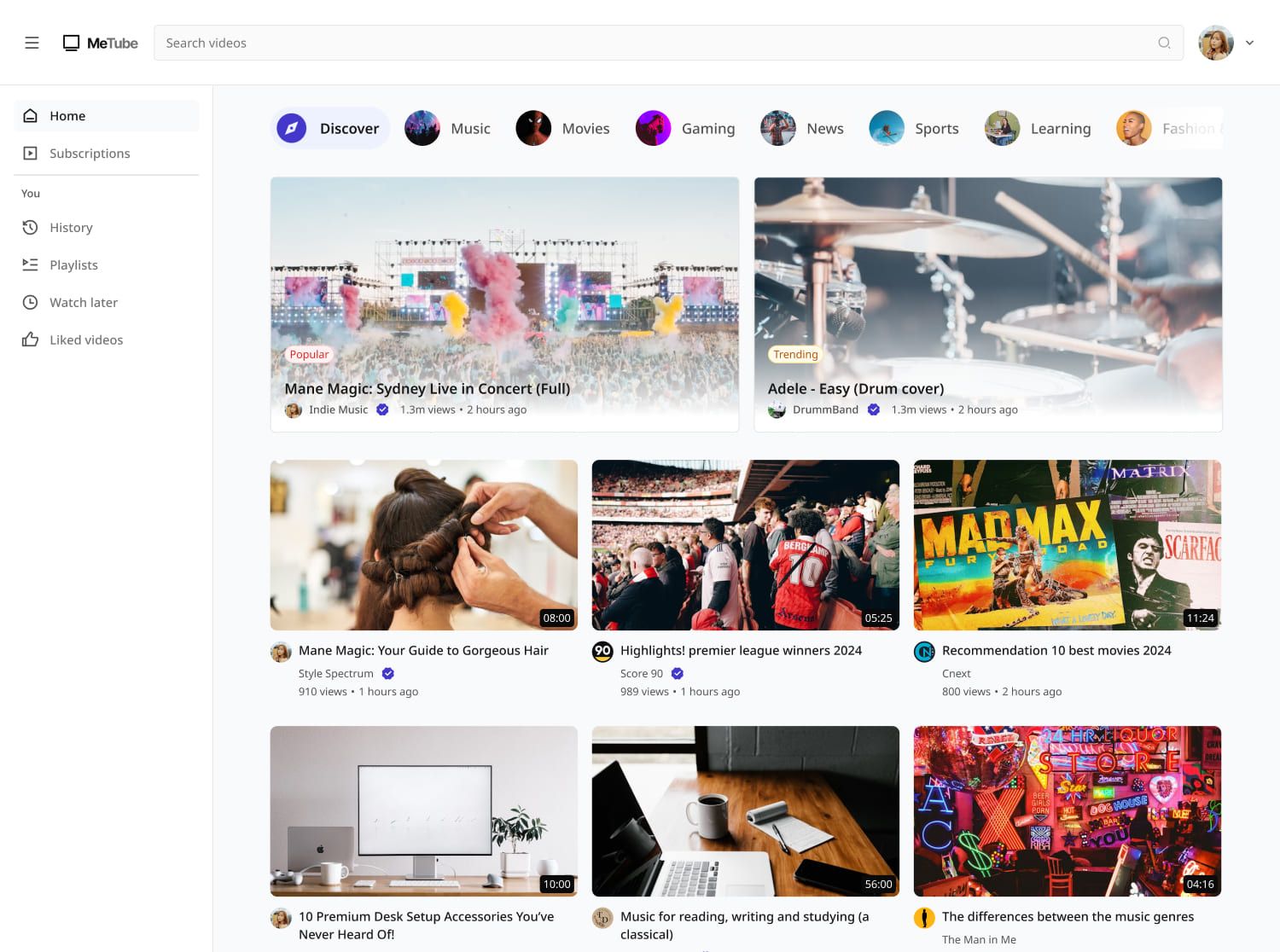
Project brief
In this challenge, you are tasked with creating a fully functional, responsive video-sharing application that adheres to the design specifications provided. In summary, the interface should include the following features where users can:
- Video feed: Browse a feed of videos, including videos by category
- Video player: Watch a video, participate in discussions and view related videos. Collapse it to a mini player (picture-in-picture) mode.
- Video channels: Browse all the videos and playlists in a channel
- Subscriptions: Subscribe to channels and view a list of latest videos from their subscriptions
- User history and likes: View watch history (grouped by day) and previously liked videos
- Playlists: Create, edit and delete playlists, add videos and play all videos
This challenge requires the Sidebar (Collapsible), Video Card, Subscribe Card, Video Player, Video Feed Page, Discussions Section, and Video Channel Page challenges to be done first. If you'd like to complete the end-to-end flow, you may work on Share to Socials as an optional enhancement.
Functional Requirements
1. Application layout
- Sidebar (Collapsible): Reuse the component from the Sidebar (Collapsible) challenge
- If the user is not signed in, prompt them under the sidebar items with a "Let's create an account" card
- Top navbar: Contains the search bar and account dropdown
- Account dropdown:
- If the user is not signed in, show the default avatar profile picture and Sign in / Create account options.
- Else, show them options to go to Settings or Sign out
- Search bar:
- Build a simple search bar to allow users to type keywords to search videos. Return a list of videos from the YouTube API. When a keyword is removed, revert to the default list of recommended videos.
- Results state: Show a list of returned videos with the keyword in the search bar
- No results state: Show a message indicating no results were found for the search query
- Footer: Include a copyright notice and a set of social media and external links at the end of the page. You may link to your own social media links.
2. Home Page (Video feed)
If you did the Video Feed Page challenge, integrate it for dynamic content display. Else, you can also build it directly in this challenge.
- Display a list of recommended videos for the user. If they are not signed in, display a list of default recommended videos, such as regionally popular videos from your video data source.
- Filter Chips: Provide users with filter options to quickly navigate between different categories such as Discover, Music, Movies, Gaming, etc.
- Infinite scroll: Dynamically load more content as the user scrolls down, with each page consisting of 30 items (Desktop), 12 items (Tablet / Mobile).
3. Video card
If you did the Video Card challenge, integrate it for dynamic content display. Else, you can also build it directly in this challenge.
- Video title: Truncate long titles if needed, as per the design
- Video duration: Display in HH:MM:SS
- Creator name: If the creator is verified, display verification tick
- Number of views: Conduct big number rounding and truncation e.g. 500,000 to 500K, 5,000,000 to 5M
- Date created: In relative time format e.g. 5 months ago
- Click action: Clicking on the creator name takes the user to their channel. Clicking anywhere else leads to the Video Detail Page.
4. Video detail page
- Video player: Reuse the component from the Video player challenge
- Start playing the video when the user lands on the page
- Picture-in-picture:
- Leaving a page: When the user leaves the page while the video is playing, play the video in picture-in-picture mode (miniplayer at the corner of the screen)
- Miniplayer mode on video player: If the user clicks on the miniplayer mode on the video player, go back to the 'Home' page with the video in picture-in-picture mode
- Share: Upon clicking the share button, open a modal (from the Share to Socials challenge)
- [Stretch goal] Add to the modal an option to embed video. Upon selecting that, allow users to modify the embed and copy it to their clipboard.
- [Stretch goal] "Start at x:xx" option: If selected, set the video URL such that the video to be shared starts at a certain playback time. This playback time is the playback time when the user clicked 'Share'
- Save (to playlist): Allow users to select playlist(s) to save the video to. They can also create a new playlist by indicating its name and privacy option.
- Related videos: Show a list of related videos
- Discussion section: Build the Discussions challenge first and integrate the component here
5. Subscribe button
Allow users to subscribe to a video channel
- Implement and style to reflect different states - normal, hover, focus and disabled.
- Click action:
- When clicked, the button's text changes from "Subscribe" to "Subscribed". A success toast should be given that says "Subscription added".
- Clicking the button again will unsubscribe the user, reverting the text back to "Subscribe." A toast should be given that says "Subscription removed"
6. Subscriptions Page
- If the user has subscribed to channels:
- Display the latest videos from subscribed channels.
- Infinite scroll: Dynamically load more content as the user scrolls down, with each page consisting of 30 items (Desktop), 12 items (Tablet / Mobile).
- If the user has not subscribed to channels:
- Display a list of recommended channels from each category for them to subscribe to
- Integrate the Subscribe Card challenge for dynamic content display.
7. Watch History Page
- Display the user's watched videos, sorted in descending order of watch date
- Group watched videos by day: Today, Yesterday, day of the week for the past week, and specific dates for older videos.
- e.g. Today, Yesterday, Wednesday, Tuesday, Monday, Sunday, Mar 24, Mar 23, etc.
8. Playlists
General playlist functions and data
- Metadata: Title, description, number of videos, last updated date (relative time), and video order. If there are no videos, display "No videos".
- 3 privacy modes: Public, private and unlisted
- Play all: Play all the videos in the default playlist order
- Shuffle: Play videos in a random order
- Loop: Toggle whether the playlist will restart from the beginning after all videos have been played once.
- Upon playing a video from a playlist ('play all', 'shuffle', or clicking a video from the playlist detail page), there should be a playlist component on the video detail page
9. Playlists Page
- Display the user's playlists (including Watch later and Liked videos) as cards, in descending order of last updated date
- Hovering over anywhere on the playlist card triggers the "Play all" hover mode
- Clicking on "View full playlist" leads to the Playlist Detail Page
- Clicking anywhere else leads to 'play all mode'
10. Playlist Detail Page
- Display all the videos within a playlist
- If user is the owner, allow them to edit playlist name and description, and delete playlist
- Upon attempting a delete, display a confirmation modal
- Upon confirming a delete, display a success toast 'Playlist deleted'
- If user is the owner, allow them to set a playlist as public, private, or unlisted
- Users can play a video through 'Play all', 'Shuffle' or by clicking a video
11. Playlist Component on Video Detail Page
- Current Video Highlight: The currently playing video should be highlighted or marked within the playlist.
- Play Order: Show the play order of the videos.
- Scroll: Allow users to scroll through the playlist if it contains more videos than can be displayed at once.
- Functions: Allow users to toggle Loop or Shuffle (wherein a random video will be played after the current one, instead of following the numerical order)
12. Watch later / Liked videos Page
- Display videos added to 'Watch later' and liked videos in Playlist Detail Pages
- Sort each one by latest added first
13. Video channel page
- Integrate the Video Channel Page for dynamic content display
14. YouTube API integration
- Integrate with the YouTube Data API and YouTube IFrame Player API to fetch, display, and modify data pertaining to users, videos, playlists, channels, and subscriber counts
- Use Google OAuth for user-specific actions such as subscribing, liking videos, saving videos to playlists, creating playlists, and loading a user's watch history where the YouTube APIs support those actions
- Store any app-specific state that is not available through the YouTube APIs in your own backend
15. User vs Guest mode states and content
- Integrate with Google OAuth to power the Sign in / Create account / Sign out functions accordingly
- If the user is not signed in, any user-specific functions should trigger a prompt to sign in first. These include:
- Save (for saving to playlist)
- Upvoting or downvoting a video
- Subscribing to a channel
- Commenting / Replying
- Upon sign in, user-specific data and states should be reflected.
- User states that were previously stored locally in previous challenges should be saved through the YouTube APIs where supported, or in your backend for app-specific persistence, such as
- Progress: Save the user's video progress and resume that state if they revisit the video
- Channel subscription status
16. State / Edge case handling
- On top of the states in individual challenges:
- Loading state: Display a loader when data fetching takes longer than expected
- Data fetch error: Show an empty state message titled "Unexpected error" with the description "We're facing some issues at the moment. Please try again later or contact support."
- No watch history: Watch history page should display the empty state titled "No history yet" with the description "Start watching some videos!"
- No videos in a playlist: On the Playlists page, display the 'no videos' playlist card as per design. User should not be able to click through to the playlist detail page, or 'play all' videos (since there are no videos)
General Requirements
- Design fidelity: Aim to follow the design as closely as possible. All elements in the design should be present, using the specified text color, font size, font weight, spacing, dimensions, etc.
- Responsive behavior:
- Text size: Should be responsive; font size is larger for wider devices, smaller for narrow devices.
- Responsive layout: The content should stack vertically on smaller screens and align horizontally as the screen width increases.
- Interactivity:
- Link / Button states: Implement and style links and buttons to reflect different states - normal, hover, focus and disabled.
- Sidebar chips: Implement in selected and normal states
- Input field states: Implement and style input fields to reflect different states - normal, focus filled, disabled, error, error filled, error focused.
- Cross-browser compatibility: Check that your solution works for major browsers including Chrome, Firefox, and Safari.
- [Stretch goal] Performance optimization: Code for fast load times with efficient CSS and JavaScript techniques.
- [Stretch goal] Accessibility and semantics: Follow best practices for web accessibility, such as using semantic HTML and ARIA roles where necessary and using proper
alttags for images.
Resources provided
Support you can expect
